Flip Image Online
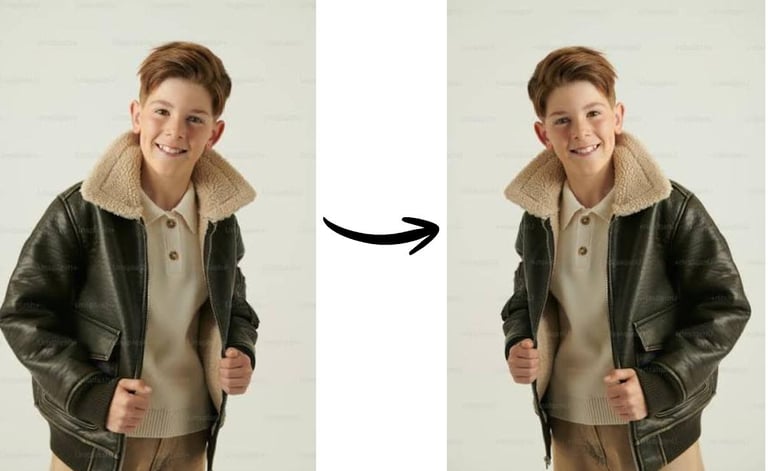
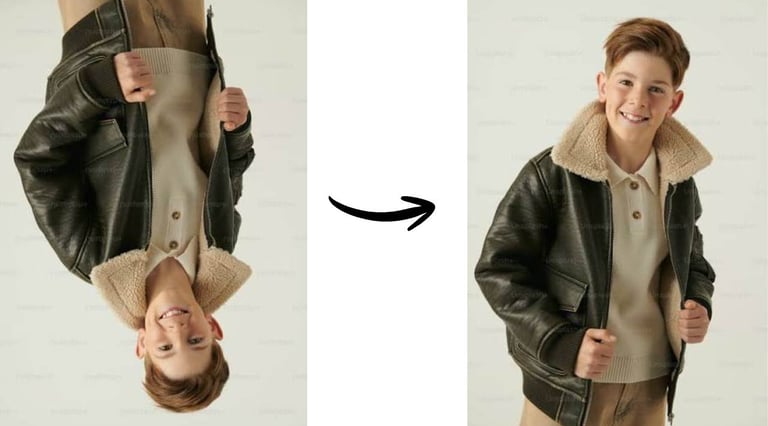
Flip Image Online for Free is a simple tool to flip images horizontally or vertically in seconds. Supports JPG, PNG, WebP, AVIF, BMP, TIFF, and more. No signup, no watermark, and no quality loss.


Flip Image Online:
You was seeing your photo on laptop, getting it ready to use somewhere, and something felt off the second you looked at it properly. A small sign in the background had text that read backward. Nothing was wrong with the original photo — your screen was just showing a mirrored version of it.
This is the flip problem. It's small, it's weirdly common on laptops specifically, and almost nobody explains why it happens. Let's fix that.
Few Moments When that Happens
Flipping doesn't get nearly the attention rotating does, but it comes up more than you'd think once you're regularly working off a laptop. A few real situations where it matters:
The video call screenshot. You're on a Zoom or Teams call, someone shares a great whiteboard sketch, you screenshot it off the shared screen or your own webcam feed, and later notice any text on it reads backward. Most webcam apps mirror your own preview so it feels natural to look at, but that mirrored version is sometimes what actually gets captured and saved.
The laptop's built-in camera app. Take a quick photo straight from your laptop's camera app for a profile picture or a quick ID-style photo, and it can save mirrored — same root cause as a webcam preview, just showing up in a still image instead of live video.
The scanner connected to your laptop. Some scanners and scanning software mirror the output depending on how the lid or feeder is set up, so what should be a straightforward document scan comes out flipped left-to-right, with the text unreadable until it's corrected.
The slide that needs a mirrored graphic. You're building a presentation on your laptop, you've got one icon or illustration, and the layout would honestly look more balanced if the copy on the right side faced the other way. Rather than searching for a second graphic, flipping the one you already have solves it in seconds.
In every one of these, the fix is exactly the same: open an online flip tool like Imaglora right in your laptop's browser, drag the file in from wherever it's saved — desktop, downloads folder, screenshots folder — flip it, and download the corrected version. No extra software, no restarting anything, no digging through settings. Just your browser and the file sitting right there on your laptop.
Horizontal Flip vs. Vertical Flip
Flipping only really comes in two flavors, and they do very different jobs.
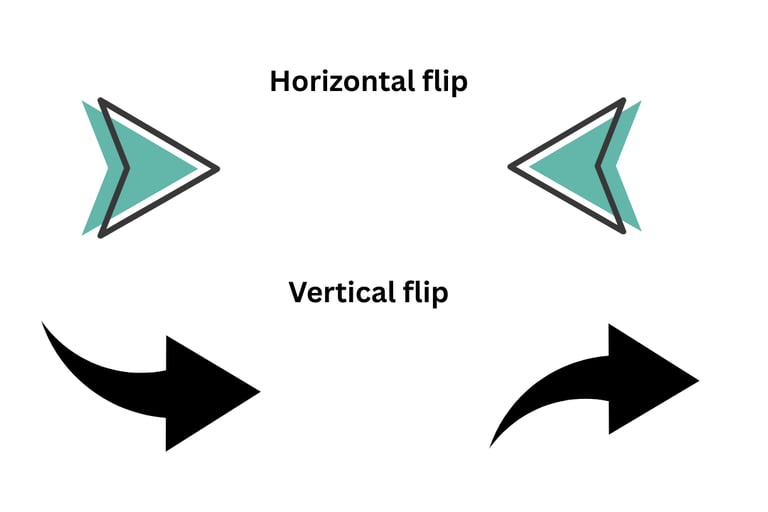
A horizontal flip swaps left and right, like standing in front of a mirror. This is the one that fixes a mirrored screenshot from a video call or a laptop camera photo — anything where text or a layout needs to read correctly left-to-right again.
A vertical flip swaps top and bottom instead, like the image got turned upside down and placed in water so you're seeing its reflection. This one shows up less in everyday screenshot-fixing and more in design work done on a laptop — think reflection effects for a graphic, or a layout that intentionally inverts part of an image for visual interest on a slide or webpage.
Most online tools like Imaglora clearly separate these two, usually as two different buttons right next to each other, so you're never guessing which one you actually need.
Flipping a Photo Online
Here's the part that surprises people: it's genuinely three moves.
One: toss the image into an online flip tool from your laptop's browser. Something like Imaglora works well here since there's no software to install, just a plain upload box sitting right on the page.
Two: tap horizontal or vertical, depending on which direction actually needs correcting. If you're unsure, just try one — most tools update a live preview instantly, so you'll know within a second if you picked the wrong one.
Three: download the corrected version straight into your laptop's downloads folder. Done.
That's genuinely the whole thing. No settings to fine-tune, no learning curve, no reason it should ever take more than a few seconds once the image is uploaded. A small thing worth mentioning: if you're flipping several screenshots or scans that all need the same correction like, a batch of pages that got mirrored during a scanning session then look for a tool that lets you apply the flip to the whole group at once instead of repeating the process file by file.
Things Worth Knowing Before You Flip
Check for text first. If there's any writing, logo, or number anywhere in the screenshot or scan, flipping it will flip that text too — and reversed text is way more obvious and distracting than most people expect. Before flipping, glance over the whole frame for anything readable.
Know which flip you actually need before touching anything. Horizontal for left-right, vertical for top-bottom. Mixing these up is an easy trap, especially since both options are usually sitting right next to each other in most tools.
Don't assume your webcam app already corrected it. Some laptop camera and video call apps automatically flip your saved image back to normal even though the live preview looked mirrored. Others don't. It's worth actually checking the saved file rather than assuming based on how the preview looked.
Keep the original around. Same rule as any photo edit — save a fresh copy instead of overwriting the only version you have, just in case the flip doesn't look the way you expected once it's applied.
Watch out for double-flipping. If your laptop's camera app already auto-corrects saved photos, manually flipping that image again can undo the correction and put you right back to a mirrored version — just in the opposite direction than you started. Simply try Imaglora to solve these problems.
Mistakes That Sneak Up on People
Branding is the first thing people forget to check. A logo or company name looks instantly "wrong" once it's mirrored but most people can't say why, they just sense something's off, and that's usually enough to make a screenshot look unprofessional in a slide deck.
Then there's the flip-versus-rotate mix-up, which happens more than anyone wants to admit. They're not interchangeable. A rotation spins an image around a point; a flip mirrors it. Grab the wrong one and a sideways screenshot doesn't get fixed, it just becomes a sideways mirror image instead.
Small directional cues get lost in the shuffle too. An arrow pointing right suddenly points left. A label that sat on the correct side of a diagram now sits on the wrong one. For anything meant to explain a real process — a tutorial screenshot, a step-by-step diagram — that kind of quiet reversal can genuinely confuse whoever's looking at it next.
And here's one final thing worth clearing up: flipping isn't a quality fix. A blurry or pixelated screenshot doesn't magically sharpen up just because it's been mirrored. People sometimes expect any kind of editing to improve a rough image — this one simply doesn't touch quality at all, for better or worse.