Which Image format is best?
Discover which image format is best by comparing JPG, PNG, WebP, AVIF, SVG, and more based on quality, file size, compatibility, and performance.
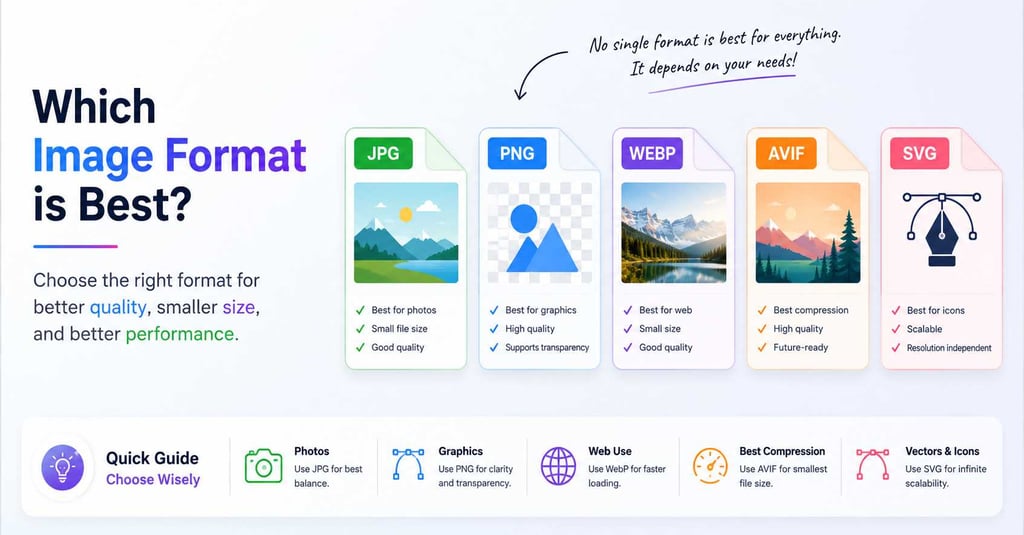
Which Image Format Is Best?
You're exporting a design from Canva or Photoshop, and it throws five different format options at you like it's testing your patience. JPG. PNG. WebP. SVG. You pick one at random, hope for the best, and move on with your day.
You're not alone in this battle. Almost nobody actually knows which image format fits which situation, mostly because nobody ever sits down and explains it in plain terms. So let's actually do that here —no drama, no pretending every format is basically the same thing with a different name slapped on.
Why "Best" Isn't a Fixed Answer
Here's the thing nobody tells you that basically there's no single "best" image format. Asking which one is best is a bit like asking which shoes are best but running shoes and formal shoes are both shoes, but you wouldn't wear one pair to a wedding and the other to a marathon. Same logic applies here. A format that's perfect for a crisp logo is a terrible choice for a landscape photo, and a format built for tiny website icons will look completely wrong if you try to print it on a banner. So instead of chasing one "winner," it's more useful to know what each format is actually built for.
Let's go through them one by one.
JPG (or JPEG)
JPG is the format most people run into daily without even realizing it. Nearly every phone camera saves photos this way by default, and it's the safest bet when you're sharing regular pictures like vacation shots, portraits, product photos, anything with lots of color variation and no sharp edges.The trade-off is that JPG uses "lossy" compression, meaning it throws away a bit of detail every time you save it to shrink the file size. Save the same JPG over and over and you'll eventually notice the quality creeping downward. For a one-time export though, that quality loss is barely noticeable to the human eye, which is exactly why it's stayed the internet's default for photos for decades.
Use it for: everyday photos, emails, casual sharing.
PNG
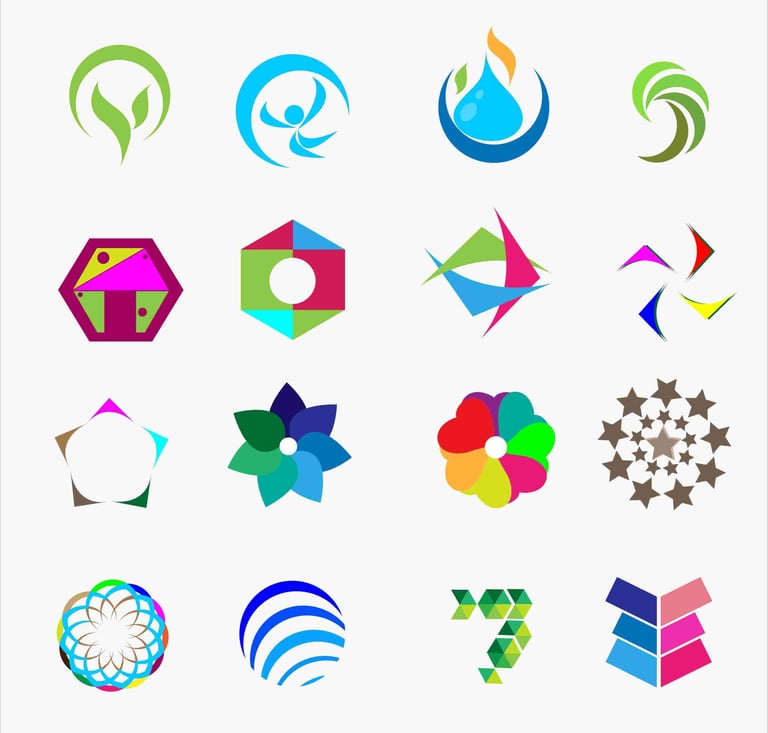
PNG solves the one thing JPG can't touch: transparency. If you've ever needed a logo with a see-through background so it sits cleanly on top of another image, PNG is the format doing that job. It's a "lossless" format too, meaning it doesn't throw away detail the way JPG does. The catch is file size because PNGs are noticeably heavier than JPGs, especially for photographs, so using PNG for every image "just to be safe" ends up bloating your website or storage for no real benefit.
Use it for: logos, icons, graphics with sharp edges or transparent backgrounds.
WebP
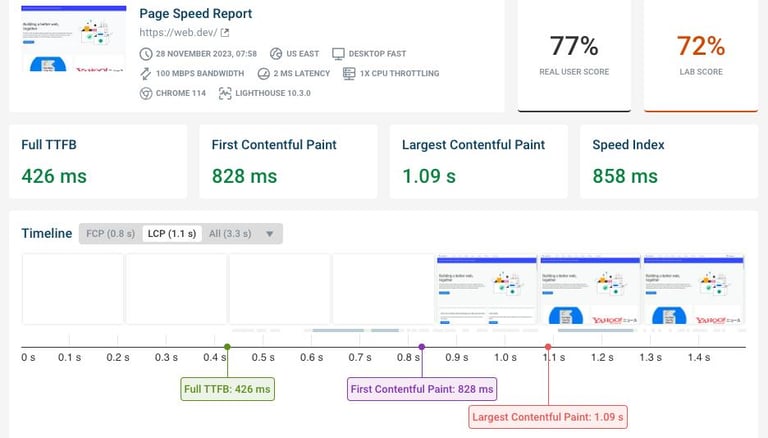
WebP is Google's answer to a fairly obvious problem: JPG and PNG are both a bit outdated for how much visual content moves across the internet today. WebP manages to compress images significantly smaller than JPG while still holding onto sharp quality, and it even supports transparency like PNG does — something JPG has never been able to do. The only real downside is that a handful of older browsers and apps still don't fully support it, though that list keeps shrinking every year. For most modern websites, switching product images and banners over to WebP is one of the easiest wins for page speed.
Use it for: website images where load speed actually matters.
AVIF
AVIF is the newer, slightly less talked-about sibling of WebP. It compresses images even further while keeping impressive quality, which makes it genuinely exciting for anyone obsessed with squeezing every last bit of load time off a page. The catch right now is support. It's improving quickly, but AVIF still isn't accepted everywhere the way JPG or even WebP are, so some platforms and older devices might not display it properly. Right now, it's a fantastic choice if you control the whole environment (like your own website), but riskier if you're uploading somewhere unpredictable.
Use it for: cutting-edge websites prioritizing maximum compression.
SVG
SVG works completely differently from everything above it. Instead of storing a grid of pixels, it stores mathematical instructions describing shapes and lines. That means an SVG logo can be blown up to the size of a billboard or shrunk to a tiny favicon, and it'll stay perfectly crisp at every single size — something a pixel-based format simply can't do. The catch is that SVG only really works for flat graphics, icons, and illustrations. Try converting an actual photograph into SVG and you'll get a weird, blocky mess, because photos don't reduce down into clean mathematical shapes the way a logo does.
Use it for: logos, icons, illustrations, anything that needs to scale.
TIFF
TIFF rarely comes up in everyday conversation, but it's a big deal in print and professional photography circles. It stores an enormous amount of detail without compressing any of it away, which is exactly why print shops and photographers archiving original shoots often prefer it. The obvious downside is size — TIFF files are huge, sometimes tens of megabytes for a single image, which makes them completely impractical for websites or casual sharing. Think of it as the format for people who need every pixel preserved, not the format for posting online.
Use it for: professional printing, archiving high-value originals.
BMP
BMP is one of the oldest formats still floating around, mostly a leftover from early Windows systems. It stores images with zero compression at all, meaning the files are massive compared to basically everything else on this list, for very little practical benefit today. Honestly, there's rarely a good reason to choose BMP over literally any other format in 2026 unless some specific old software demands it. If you come across a BMP file, converting it to something lighter like PNG or JPG is almost always the smarter move.
Use it for: legacy software requirements, otherwise skip it.
GIF
GIF is the format everyone recognizes instantly — short, looping animations, reaction memes, that kind of thing. It's genuinely great at what it does, but what it does is fairly narrow: GIF only supports a limited color palette, which makes it a poor choice for detailed photos or anything needing smooth color gradients.For actual video-like clips, newer formats compress far better while looking sharper, but for a quick looping animation shared casually, GIF still gets the job done without any fuss.
Use it for: short looping animations, casual reactions.
HEIC
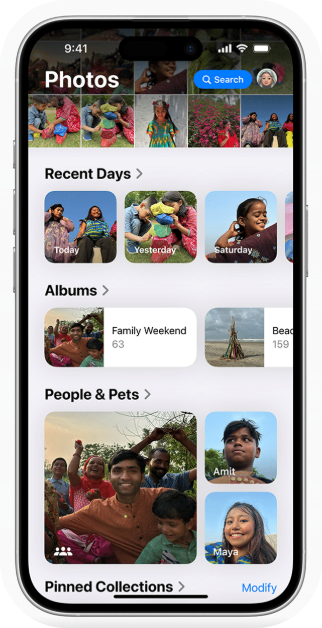
HEIC is the format your iPhone has probably been quietly saving photos in without you ever choosing it. It compresses noticeably better than JPG while holding onto more detail, which is exactly why Apple made it the default years ago.The problem shows up the moment you try sharing that photo somewhere that's never heard of HEIC — older Android phones, certain websites, and some job or admission portals flat-out reject it. That's usually the exact moment people end up needing a converter, since switching a HEIC photo to JPG instantly fixes the compatibility headache.
Use it for: everyday iPhone photography, just convert before sharing elsewhere.
So, Which One Should You Actually Pick?
If there's one takeaway from all of this, it's that the "best" format is really just whichever one matches your actual situation:
Sharing a normal photo casually? JPG.
Need a transparent background? PNG.
Building a fast-loading website? WebP, or AVIF if you control the platform.
Working with logos or icons? SVG.
Printing professionally or archiving originals? TIFF.
Made a quick looping animation? GIF.
Your iPhone saved it weird and nothing will accept it? Convert that HEIC to something normal.
And when you land on that last situation — needing to switch a photo from one format to another because something won't accept it — that's exactly the moment a tool like Imaglora earns its keep. Instead of digging through settings or installing random software, you just upload the image, pick the format you actually need, and download it seconds later.
Comparison Table: